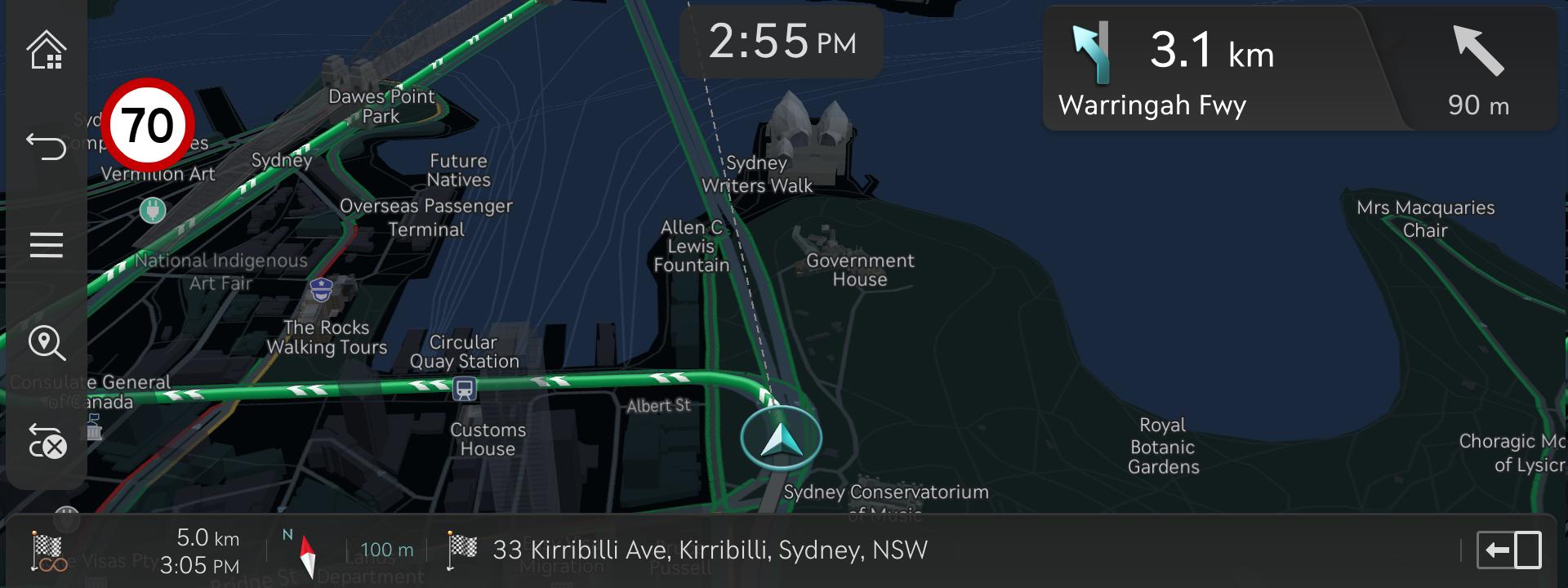
Online navigation is here - Smarter, faster, always up-to-date! The latest maps are now always available without the need for separate navigation updates.
With this update, the new online navigation system provides optimal route guidance by downloading the latest road information from the server in real time - similar to how smartphone navigation apps work.
Previously, navigation relied on offline maps stored in the vehicle, which were combined with traffic data from the server. However, due to infrequent map updates, newly opened roads were often not reflected in the route guidance.
The new online navigation system downloads only the necessary map data for the area around the vehicle and the route to the destination, ensuring efficient and up-to-date route guidance. It continuously checks for the latest map data, so drivers can always enjoy the most current navigation experience, without the need for manual updates.
In environments where network connectivity is limited, such as tunnels or mountainous areas, the system automatically switches to offline mode using map data stored in the vehicle. This ensures not only uninterrupted navigation but also the smooth operation of all vehicle-integrated features, including navigation-based Smart Cruise Control. ※ This feature is available in vehicles equipped with the ccIC infotainment systems and an active GENESIS Connected Services subscription.
< ccIC >
Types of Head Units Available to Update
Updating your Navigation Map ensures that the latest roads and points of interest are provided by your system.
Get the most out of your navigation system with the latest Navigation Map update and drive with confidence.
Below are examples of different Audio systems for which this website supports updates:
Standard-class Gen 5W Navigation (10.25 & 12.3 in. Touchscreen)
ccIC Navigation (12.3 in. Touchscreen)
New Features after map update vary by model and platform
If you own a new model not listed above, no updates are currently available
Please visit us again when the next map update is released
Disclaimer
This update provides Map data as well as software that may add new features or remove others, which may change the appearance of the user interface or the way you use it. After installation, it is not possible to revert to the previous software version
Certain new features, such as Connected Routing and Weather Data, require an active Genesis Connected Services subscription to access
Please only use the official NaU (Navigation Updater) software found on this website to download your Audio system/Map update.
Downloading or copying software or updates from other sources can lead to update failures and cause critical issues with the Audio system
If you experience any issues while using the NaU software, or before or after installation, please contact Genesis Customer Care
If your Audio system has a SD card, you need to use an SD card to update the software and Map.
The SD card slot may be located in several different places: just below, above, or behind the Audio system display screen
If your vehicle has a 16 GB SD card, please use a high-grade 32 GB SD card to perform this update
~ Please do not use micro SD card ~
If your vehicle has a 32 GB SD card, please use it to perform the update
Please do not use the SD card to save music or other data files
If your Audio system does not have a SD card, you need to use a USB flash drive to update the software and Map
Please format the USB flash drive in ExFAT before using the NaU software
When selecting your vehicle, make sure the model/model year are correct before starting the download process.
If the wrong model/model year is chosen, the update cannot be performed
Please ensure that you select the correct drive on your PC if you have multiple portable storage devices connected
Disconnect the portable storage device (SD card or USB flash drive) only after confirming the download process is complete
Disconnecting the portable storage device during the download process can lead to corrupt files and a Map update failure
Warning:
During vehicle software installation, the vehicle must be running to keep the battery charged. Do not change to ACC mode, turn off the START button/ignition switch, or disconnect the SD card/USB flash drive during the upgrade procedure
Here is how to double-check if your vehicle is running
The START button "ON" indicator should be lit, or if you have an ignition switch, it should be in the “ON” position
A software update could affect the functionality of aftermarket components
(e.g. aftermarket rear view camera, speakers, etc.)
If you have any questions, please reach out to Genesis Customer Care or the Hyundai AutoEver call center
Can't be downloaded on a tablet or other mobile devices.
Please download on a PC.